PC to Arduino to LED Control, Source Code

Due to popular demand, here is the source code for my blog entry, “PC to Arduino to LED Control.”

First the Processing Source code:


// ButtonProc
// Make a button on the screen that can be clicked
// and cause an LED to turn on and off in synch on 
// the Arduino.  Used in conjunction with ButtonArd.
// 

import processing.serial.*;

Serial myPort;  // Create object from Serial class
int val;        // Data sent to the serial port


  // set ButtonValueY = 0
    int ButtonValueY = 0;
    int ButtonValueR = 0;
    int ButtonValueG = 0;
    int ButtonValueB = 0;
    
  // set clickflag = 0
    int clickflag = 0;
    
void setup() {
  size(480, 500);
  smooth();
 
 String portName = Serial.list()[0];
  myPort = new Serial(this, portName, 9600);
  
 fill(150,150,0);
  rect(100, 100, 50, 50);
  fill(150,0,0);
   rect(100,200, 50,50);
   fill(0,150,0);
  rect(100,300,50,50);
  fill(0,0,150);
  rect(100,400,50,50);

    }

void draw() {

  // IF the mouse not pressed
  // THEN clickflag = 0 and return
  
     if (mousePressed) {
       clickflag = 0;
     return;
     }

  
  //for when the mouse is pressed:
  // IF clickflag = 1 
  // THEN return
  
    if (clickflag == 1) 
    {
      return;
    }
    
   // for the first time that we read the button is pressed:
   // clickflag = 1
   
   clickflag = 1;
   

  // Yellow LED:  Is MouseX and MouseY within boundaries?  
        if ((mouseX > 100) && (mouseX < 150) && (mouseY > 100) && (mouseY < 150)) 
       {
           // Is ButtonValueY = 0?
          if (ButtonValueY == 0) {
              ButtonValueY = 1;
              fill(255,255,0);
              myPort.write('A');
              rect(100, 100, 50, 50);
          } else {  
             fill(150,150,0);
             ButtonValueY = 0;
             myPort.write('B');
             rect(100, 100, 50, 50);           
          } // end of ButtonValueY check
          
          }
         
          
  // Red LED:  Is MouseX and MouseY within boundaries?  
        if ((mouseX > 100) && (mouseX < 150) && (mouseY > 200) && (mouseY < 250)) 
       {
           // Is ButtonValueR = 0?
          if (ButtonValueR == 0) {
              ButtonValueR = 1;
              fill(255,0,0);
              myPort.write('C');
              rect(100, 200, 50, 50);
          } else {  
             fill(150,0,0);
             ButtonValueR = 0;
             myPort.write('D');
             rect(100, 200, 50, 50);           
          } // end of ButtonValueR check  
          }  
    
  // Green LED:  Is MouseX and MouseY within boundaries?  
        if ((mouseX > 100) && (mouseX < 150) && (mouseY > 300) && (mouseY < 350)) 
       {
           // Is ButtonValueG = 0?
          if (ButtonValueG == 0) {
              ButtonValueG = 1;
              fill(0,255,0);
              myPort.write('E');
              rect(100, 300, 50, 50);
          } else {  
             fill(0,150,0);
             ButtonValueG = 0;
             myPort.write('F');
             rect(100, 300, 50, 50);           
          } // end of ButtonValueG check  
          }       
     
      // Blue LED:  Is MouseX and MouseY within boundaries?  
        if ((mouseX > 100) && (mouseX < 150) && (mouseY > 400) && (mouseY < 450)) 
       {
           // Is ButtonValueB = 0?
          if (ButtonValueB == 0) {
              ButtonValueB = 1;
              fill(0,0,255);
              myPort.write('G');
              rect(100, 400, 50, 50);
          } else {  
             fill(0,0,150);
             ButtonValueB = 0;
             myPort.write('H');
             rect(100, 400, 50, 50);           
          } // end of ButtonValueG check  
          }          


}


And here is the Arduino source code:

int incomingByte = 0;	// for incoming serial data

void setup() {
	Serial.begin(9600);	// opens serial port, sets data rate to 9600 bps
        // initialize the digital pin as an output.
        pinMode(13, OUTPUT);
        pinMode(12, OUTPUT);
        pinMode(11, OUTPUT);
        pinMode(10,OUTPUT);
        
}

void loop() {

	// act on data only when you receive data:
	if (Serial.available() < 1) {
          return;
          }
        
	// read the incoming byte:
	incomingByte = Serial.read();

        //yellow LED   
	if (incomingByte == 65){
          digitalWrite(13, HIGH);   // set the LED on
          }               
        if (incomingByte == 66) {
          digitalWrite(13, LOW);   // set the LED off
        }  
          

        //red LED           
	if (incomingByte == 67) {
          digitalWrite(12, HIGH);   // set the LED on
          } 
              
        if (incomingByte == 68) {
          digitalWrite(12, LOW);   // set the LED off
          } 

        //green LED           
	if (incomingByte == 69) {
          digitalWrite(11, HIGH);   // set the LED on
          } 
              
        if (incomingByte == 70) {
          digitalWrite(11, LOW);   // set the LED off
          }  
          
        //blue LED           
	if (incomingByte == 71) {
          digitalWrite(10, HIGH);   // set the LED on
          } 
              
        if (incomingByte == 72) {
          digitalWrite(10, LOW);   // set the LED off
          }            

	
}

You should be able to copy and paste this into the Processing and Arduino IDEs without any trouble. I’ll try to provide support, but I apologize in advance for being distracted with other stuff at the moment.

Posted in Uncategorized | Tagged , , , | 3 Comments

Robot assembly order is important

When I attempted to assemble the first laser-cut casing for grisbot, it was a learning experience. In particular I learned that design has to accommodate the assembly process. So that’s what I’m trying to anticipate with minigris.

mga-1a

For example, in the above illustration we see that the servo wires won’t fit through the hole if we try to insert the servo from the exterior of the side panel. So we have to insert the servo from the interior, and only then can we attach the wheel.

mga-1b

Here I’m using the bottom panel as the assembly base, logically enough. Thus I begin by inserting the rear panel.

mga-2a

Since the rear panel has slots pointing upward, it’s easy to ‘hook’ the side panels onto the assembly. Contrast with my previous grisbot design, which had side tabs and slots requiring all four vertical-oriented pieces to be fitted together at once and only then attached to the base. That was a challenge to my lack of manual coordination!

mga-2b

The slots on the front panel point downward, which enables the front panel to be easily removed. I’m planning to offer optional equipment that can be installed into the empty space under and forward of the servos, and having an easily-removed-and-reinstalled front panel facilitates that.

I learned from my previous design that servo wires take up a lot of room internally and it’s a hassle to stuff the wires into the casing and even more of a hassle to trim them. So the top panel not only has openings for the breadboard and battery, there are also two small access holes in the rear through which to route the servo wires up to the breadboard.

Not shown in this casing assembly process: the caster ball in the back, and the top-to-bottom bolt that secures the pieces together. And of course, wires, battery, mini breadboard, and electronic components.

Posted in Uncategorized | Tagged , , , , , | 1 Comment

Mini Grisbot with tabs and slots

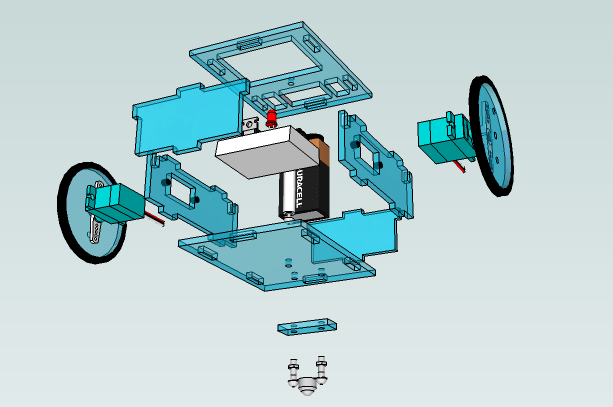
minigris expanded 2

Here’s an expanded view of mini grisbot. I tried to learn from previous experience and incorporate design changes accordingly. Indeed, this design is probably going to change as well.

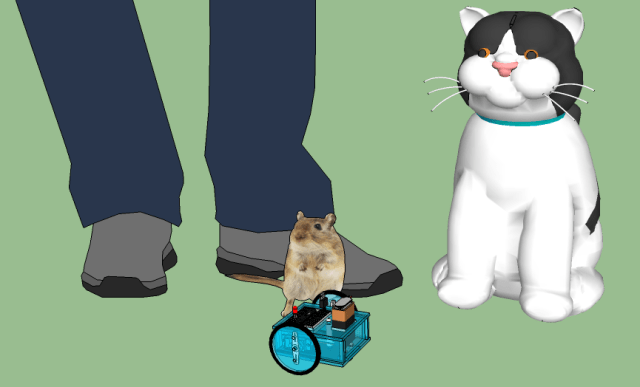
Just so we’re clear, minigris is a very small robot:

minigris scale

Posted in Uncategorized | Tagged , , , , | Leave a comment

Mini Grisbot in Sketchup

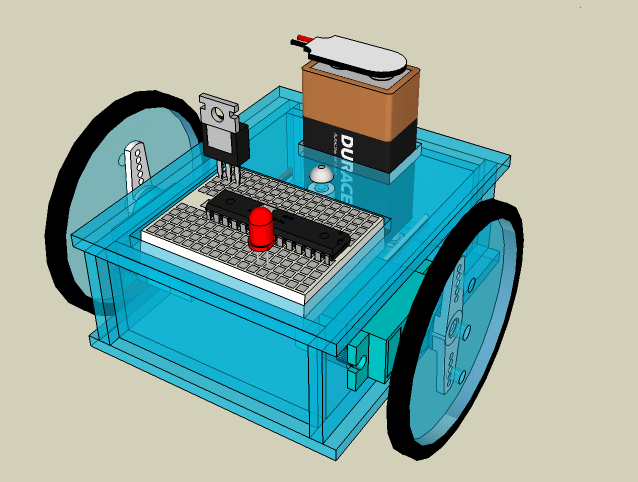
minigris 03

It’s about three inches long by two and a half wide. Driven by two micro servos, controlled by an Atmega328 microcontroller. I think I’m about ready to put in slots and tabs and take it to the laser cutter.

Posted in Uncategorized | Tagged , , , | Leave a comment

Continuous rotation micro servo

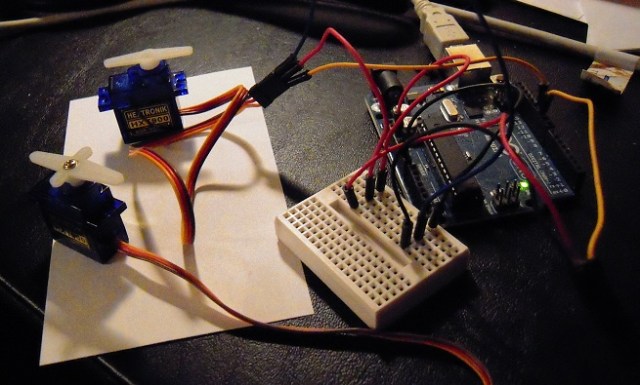
Here are two Hextronik HXT900 microservos which I have modified for continuous rotation. These will provide the propulsion for the latest version of Grisbot.

HXT900s are about the cheapest microservos out there. I’m planning to buy mine at Hobby King for $2.69 each, which is much nicer than the $15 or so that the bigger servos cost.

It took me about half an hour to convert the latest servo, which is way too long. However, I’m getting the hang of it. I think that with a little practice, I can get it down to no more than five minutes per servo.

Posted in Uncategorized | Tagged , , , , | Leave a comment

Modeling Molecules in Sketchup: Complete DNA Series

I have completed the video series on how to use Sketchup to make a molecular molecule of DNA. Here is the Youtube page:

Modeling Molecules – Youtube

Posted in Uncategorized | Tagged , , , | Leave a comment

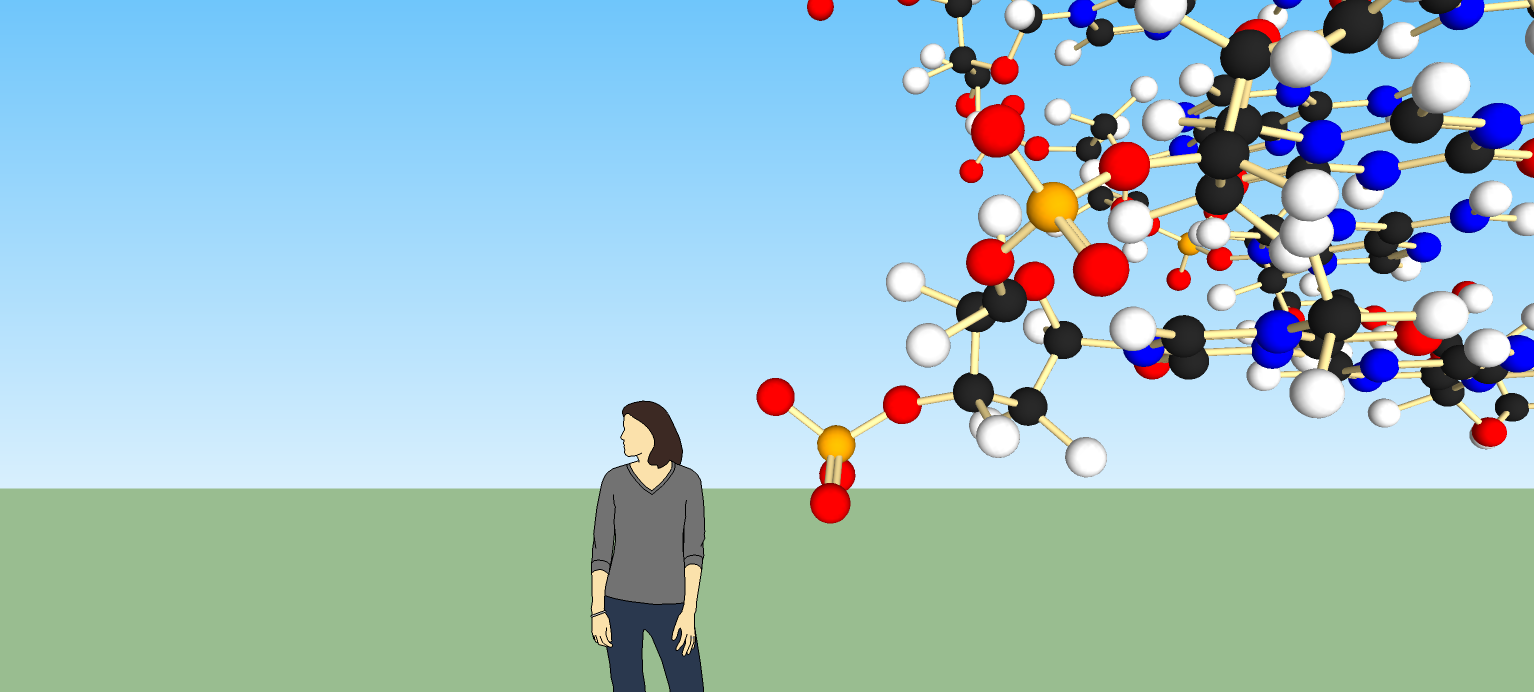
Susan Deoxyribose

Susan is the generic human model who comes up automatically when the user starts a New file in Sketchup Version 8. I happened to have copied and pasted my latest DNA model to a New file, and there she was, with green ground and blue sky. I thought this scene looked surreally cool.

Notice that my DNA model has all the sticks going into balls now. It’s not perfect, but I think it’s good enough for illustrative purposes.

I hope to finish all the videos in the Youtube Modeling Molecules series within a few more days.

Posted in Uncategorized | Tagged , , , | Leave a comment

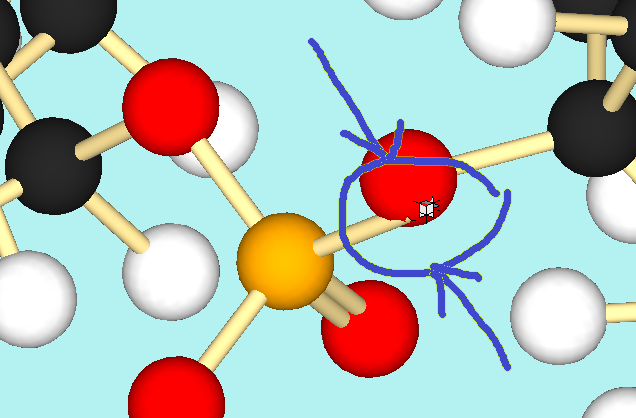
DNA in Sketchup: closing in

From a distance it looks okay, but alas:

The phosphodiester bond needs a little more twisting. Once I get that done, my DNA will look okay even close up.

Onward! Excelsior! Whatever!

Posted in Uncategorized | Tagged , , | Leave a comment

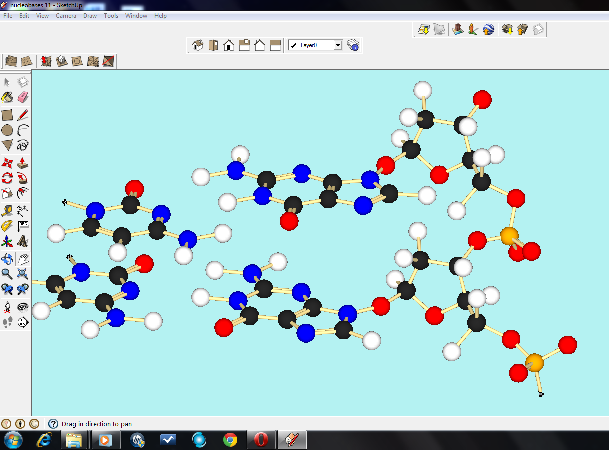
DNA in Sketchup: A Glimmer of Success?

Here’s the first time that I’ve been able to connect two base pairs in the DNA spiral for my modeling molecules project. My method is quite complicated and I’ve had to resort to all kinds of tricks utilizing layers to pull it off, and I’m far from done. I really sense that if it’s this complicated, I must be doing it wrong.

You know what would be cool? If I could just reach into the screen and twist molecules, like they did in the VR lab in Jurassic Park.

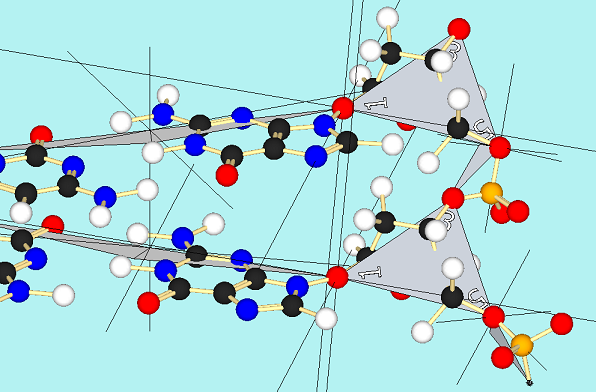
Here’s what I have to do instead, with all layers exposed:

Like I said, it seems way too complicated. But it seems to be working, which is a point in its favor.

Posted in Uncategorized | Tagged , , , | Leave a comment

Raspberry Pi from Maker Shed

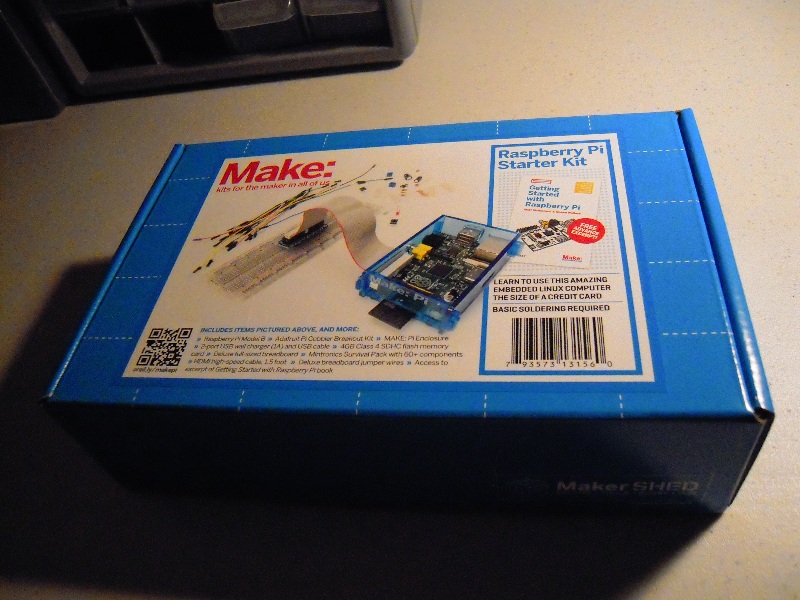
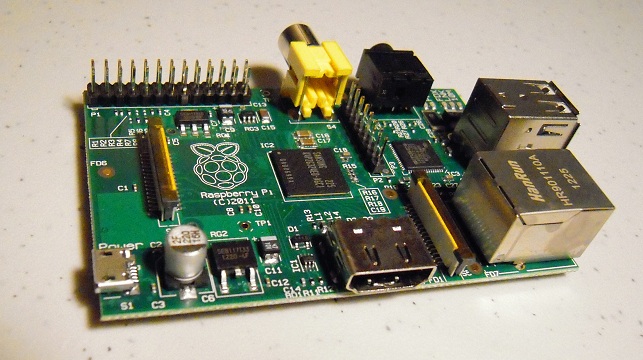
Here’s the Raspberry Pi starter kit from Maker Shed:

Here’s a size comparison with an Arduino (does not come with kit):

Just as a note: I bought this kit about two weeks ago when it first came out at the full price of $124 and now it’s on sale for $99. Yes, I know, tough nuggies. But it’s hardly a way to stimulate short-term sales if you signal to your customers that if they hold off on buying right away, you’ll cut prices by 20%.

Posted in Uncategorized | Tagged , , | 3 Comments