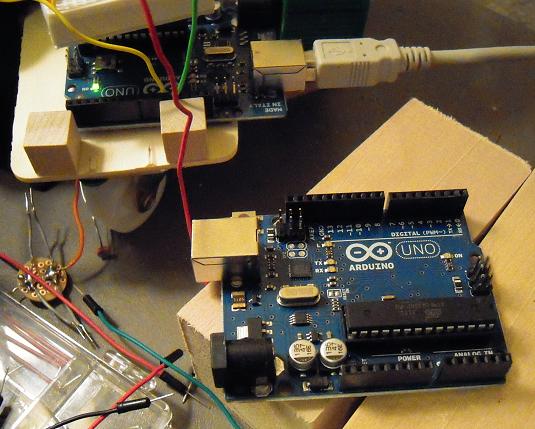
GIRC test drive on blocks

GIRC (Graphical Interface for Robotic Control) is a ‘sketch’ written in Processing that enables user to draw a path file, save and reload, and transfer control codes to an Arduino-brained robot. The magnitudes of the turns and distances haven’t been calibrated yet, which is why the robot is still on blocks.

(. . . I have the uncomfortable feeling that the turns are in the wrong directions. Don’t comment me on that, I’ll figure it out! And BTW, sorry for the camera work, which cuts off on the right.)

Floor trials are starting soon, but maybe I first need to replace that furniture-wheel castor with the robot-ball castor that I bought.

Posted in Uncategorized | Tagged , , , , , | Leave a comment

Disorganized workspace, organized mind (I hope)

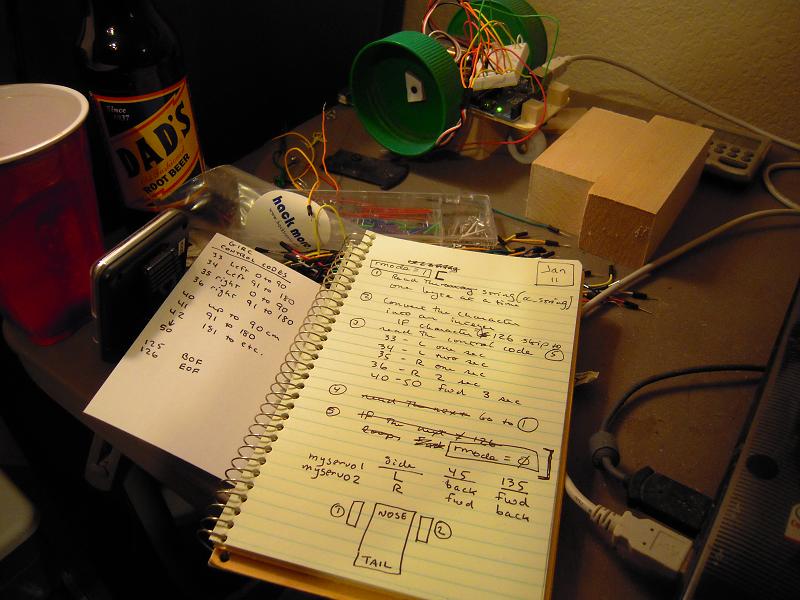
Today I verified that the Arduino sketch still runs the servos, and then I did some organizing and planning.

The note card on the left shows the listing for GIRC control codes (so far). On the right, I wrote out in words what I want the next phase of testing to do, which will be just to turn the wheels properly for the respective control codes. At the bottom of the page is an illustration to show how the servo commands relate to the wheel turnings.

If all goes well, there’s a fair chance that I’ll have the robot ‘on the floor’ by the weekend.

So I do have my thoughts organized. Now if only I could unclutter the workspace, and as you might guess, at the present time the rest of my apartment looks a lot like the state of this table.

Posted in Uncategorized | Tagged , , , , , | Leave a comment

A problem with Arduino arrays?

For days now I’ve been trying to troubleshoot why my computer and arduino won’t talk over the serial port. Finally, I took to commenting out all the arduino code and adding it back one line at a time.

I assumed the problem was with reading the serial port, but instead I discovered that when I included the lines that added the incomingByte values to an array, the arduino seemed to stop working entirely.

So instead I created a fifty character string globally, like so:

String cc_string = "12345678901234567890123456789012345678901234567890";

Then, in the loop() function, I replaced characters in the string with the incoming bytes converted into characters like so:

        cc_count = cc_count + 1;
        cc_string.setCharAt(cc_count,char(incomingByte));
        //cc_list[cc_count] = incomingByte;

And finally I read out the characters like so:

    int ib;
    for (int i = 1; i<=cc_count; i++){
      ib = int(cc_string.charAt(i));
      if (ib == 125) {
          tri_flash();
          delay(1000);
      }
      if (ib == 126) {
          tri_flash();
      }

The function tri_flash() causes the pin 13 LED to flash rapidly three times. And that it did, twice, which confirms that both bytes 125 and 126 made it over the serial port and into the string and then were translated out again.

I’m not sure why I couldn’t just load the incomingByte variable into an integer array. It might have something to do with the size of the array (1000). Dimensioning the array didn’t cause problems, but when I then put commands into the loop function to actually load values into the array, that’s when the program/sketch wouldn’t even acknowledge that the data had been received.

Surely there’s a more elegant way to deal with this, but given my lack of expertise, perhaps it’s for the best if I just take my kludgey solution and move on.

But does it really work, or does it just appear to work? I’ll find that out tomorrow when I try to make the servos respond to the stored commands.

Posted in Uncategorized | Tagged , , , | Leave a comment

PC to Arduino: Serial BOF and EOF control codes

(First of all, I’ve tried to train myself to refer to the data sent over the serial port as ‘command codes’ but I always find myself lapsing into calling them ‘control codes.’ So I give up for today.)

Here’s what I send from processing:

          int outgoingbyte = 125;
          myPort.write(outgoingbyte);
          for (int i = 1; i<=cnum; i++){
               seg_calc(i);
               println(str(i-1)+"."+str(cc1)+"."+str(cc2)+"."+str(cc3)+"."+str(cc4));
               myPort.write(cc1);
               myPort.write(cc2);
               myPort.write(cc3);
               myPort.write(cc4);
          }
          outgoingbyte = 126;
          myPort.write(outgoingbyte);

And here’s how the Arduino receives it:

	if (Serial.available() < 1) {
          return;
        } 
        digitalWrite(13,HIGH);

	incomingByte = Serial.read();
        /*
        if (incomingByte == 125){
          digitalWrite(13,HIGH);
          delay(5000);
          cc_count = 0;
        }
        if (incomingByte == 126) {
          digitalWrite(13,LOW);
        }
        cc_count = cc_count + 1;
        cc_list[cc_count] = incomingByte;
        */

As you can see, I commented out most of the code here because it wasn’t working and I needed to test it. What the uncommented code does is turn on the pin 13 LED to confirm when serial data is received. And yes, the LED went ON, so I know that data is coming over.

Originally, however, the code was written to turn on the pin 13 LED when a value of 125 (= BOF = Beginning Of File) is received and turn off the pin 13 LED when a value of 126 (= EOF = End of File) is received. It wasn’t doing that.

So where am I? I know that data is going over the serial port, but apparently it’s not being read the same way it was written. Now I need to find out why, or find a way to work around the problem.

Posted in Uncategorized | Tagged , , | Leave a comment

PC to Arduino: Hello, are you still there?

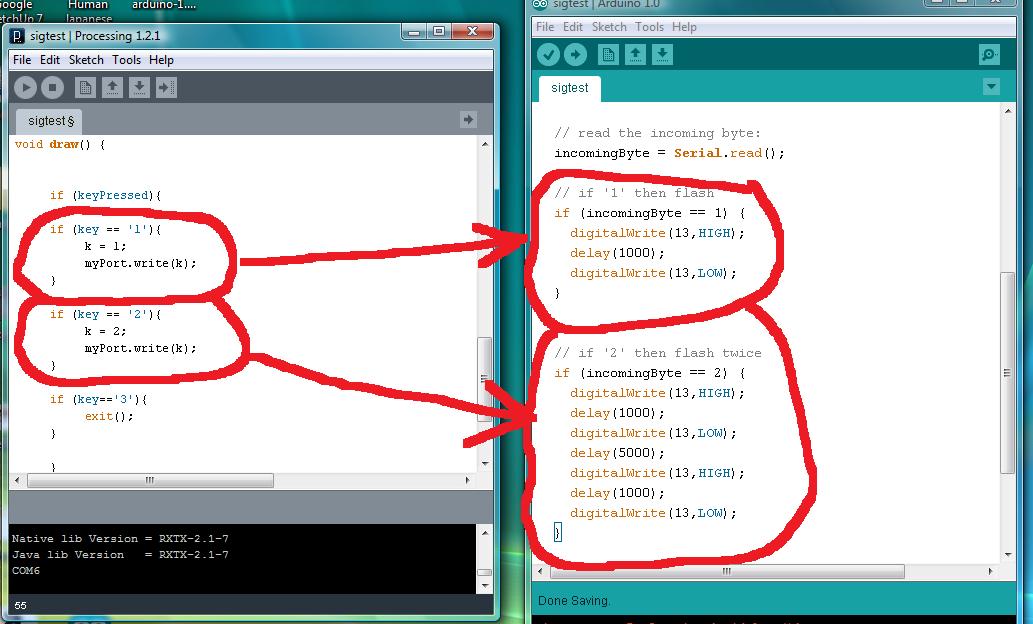
I wrote these two sketches to confirm that yes, serial port communication still works between Processing and the Arduino under the new Arduino IDE.

The sketch on the left is written in Processing and writes to the serial port. The sketch on the right is written in Wiring (that is, Arduino-ese) and reads from the serial port.

The Arduino pin 13 LED flashes once when the ‘1’ key is pressed, twice when the ‘2’ key is pressed. So yes, the Arduino is still reading serial from Processing.

(So whatever problem I was having the other day with GIRC, it’s not because of the new IDE. )

The Processing sketch could stand some improvement because when you press a key, it sends multiple bytes to the Arduino because human fingers are slow compared to computer keyboard reading speeds. The Processing sketch should just send one byte and wait for the key to be released. The fix should be easy, but these sketches have served their purpose and it’s time to get back to GIRC.

Posted in Uncategorized | Tagged , , , , | Leave a comment

Sending Serial Data from Processing to Arduino

I want to send data from my laptop to the Arduino-based robot. Processing is running on the laptop and Wiring on the Arduino. In Processing, the serial object is being called ‘myPort’ (it could have been called ‘Joe’ for that matter, but I decided to stick with the example in the book). This makes the command to send data: myPort.write().

On the Arduino side, the incoming bytes are recorded into a byte-typed variable called, imaginatively, ‘incomingByte.’ From there they are stored in a byte-typed array called cc_list[], for ‘command code list.’

A byte value of 126 is used to signal End of File (EOF). I could have used 127 but that’s just a string of 1’s and I worry that something might arbitrarily generate a string of 1’s and mess me up. When a 126 is received, the LED on the board will flash three times, signalling that all the data is received.

Well, I think this does it for sending the data, but I can’t be sure unless I can echo the data back to the serial monitor. And that is where I’m stuck . . . .

Posted in Uncategorized | Tagged , , , , , | 1 Comment

Buying an Arduino at Radio Shack

Ever since I was informed that Radio Shack was going to sell Arduinos, I’ve been swinging by the local store to check what they have in stock. Well, last night there was a Mega and a motor controller shield on display, which are relatively specialized applications for new users and I won’t be surprised if the store has trouble moving the merchandise. The basic Uno, which would obviously have the widest appeal to the masses of Arduino-neophytes walking in off the street, was nowhere to be found on display.

I asked the associate if there were any Unos around, and it turns out there was one under the counter that had been opened and returned. So I bought that. It cost $34, compared to mid-twenties for Amazon, but okay, I expect the convenience of retail to cost more.

“What does it do?” the clerk asked.

“It’s a microcontroller,” I said.

“Oh,” he said.

Well, maybe I should have elaborated. These days Radio Shack clerks are knowledgeable about cell phone contracts, not so much electronic components, though maybe that will change.

(And yes, the Arduino technically isn’t a microcontroller, it’s a prototyping platform, but I don’t think he would care enough for me to go back and apologize for my misstatement and explain the difference.)

As soon as I got home, I connected it to the USB cable — and got an error message on my computer saying it could not find the driver. More error messages followed when I tried to load the pin 13 LED blink sketch. I began to suspect why the unit might have been returned. It’s not defective, it’s just that there is a learning curve with respect to drivers and comm port assignments and all that (even the zip file format presented problems).

Anyway, after an hour of my bumbling around, it appears to work okay now.

Now as for the following comments, I admit that I’m only a customer, but then again, I am a customer and most businesses do care what customers think and I assume Radio Shack is the same way. So based on that qualification, here are some additional comments about the retail presentation:

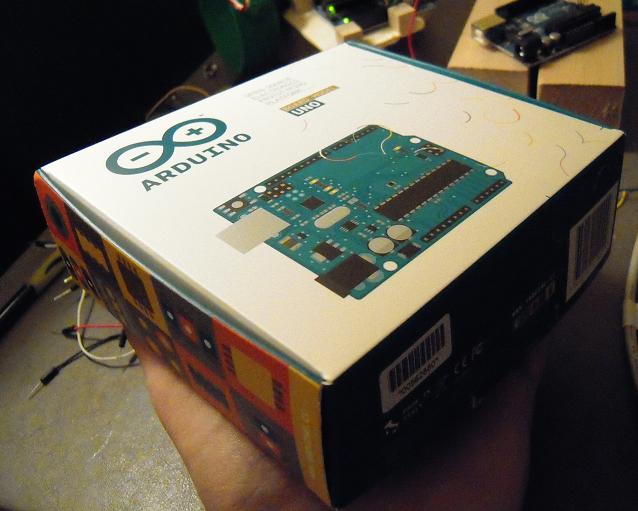
The display box is very attractive, like a work of art, but (assuming the original purchaser didn’t fail to repack it for store return) there is very little documentation inside. I would recommend that the back of the box should specifically mention that getting-started documentation (and not just free software) is available at arduino.cc and that a USB A-to-B cable is required for connection to a PC.

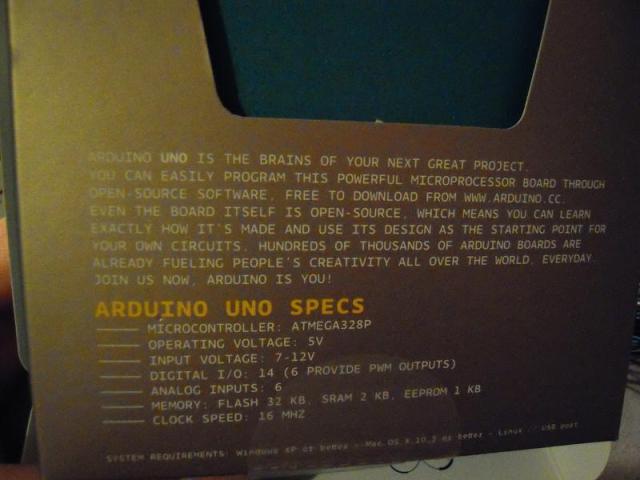
Keep the front and side box graphics by all means, but to enhance readability for those of us with weaker eyesight the printing on the back should be darker letters against a brighter background (or vice versa) — and please, not all capitals!

Well, decide for yourself:

As for shelf presentation, I would recommend that for now Radio Shack limit its Arduino display to:

1. The Uno.
2. The book Getting Started with Arduino.
3. A ‘starter kit’ containing a USB a-to-b cable, a mini breadboard, and a package of LEDs and resistors and flexi-jumpers to perform the examples in the book.

If sales volume builds, then expand the product line’s shelf presence of course.

Retail sales associates obviously don’t have the time to be trained in everything that a microcontroller/prototyping-platform can do, but they should at least be able to tell customers, “Oh, you can connect it to your computer and program it to turn on lights and run motors and read temperature sensors and things like that.”

Please note, these comments are offered in the spirit that having the Arduino at retail level is cool for hardware hackerdom. I’m happy that Radio Shack is selling the Arduino, and I hope that the endeavor is a success for everyone concerned. (And if someday my robot kits can get in on that success, that would be great too!)

Posted in Uncategorized | Tagged , , , , | 3 Comments

Arduino Pin 13 as low-res serial monitor

Now that I have data to send from the computer to the arduino, I’d like to verify that it has gotten to the arduino. My original assumption was that I could echo back the data and read it on the arduino serial monitor. Unfortunately, it appears that when a program in Processing is running the serial port, the arduino serial monitor capability doesn’t work.

My short-term solution is to have the arduino’s built-in LED at pin 13 serve as kind of a low-res serial monitor. When a byte value of 67 is received over the serial port, the arduino sketch writes pin 13 high. Why 67? It’s the last byte value in the path file that I wrote and am using for testing purposes.

Anyhow, when I transferred the data from the computer to the arduino, pin 13 did indeed come on:

This is an improvement over the null pointer errors that crashed GIRC when I initially tried to transfer data, but still I want to verify that all the bytes are getting over to the arduino. So that’s where I’ll be heading next.

Posted in Uncategorized | Tagged , , , , , | 1 Comment

GIRC: Reviewing Output in the Processing Console

After I generate a path and convert the data into turn-and-move format, I want to send the data to the arduino-robot. For this I will use the USB/serial cable. But before I send any data, I want to make sure I’m sending the right stuff.

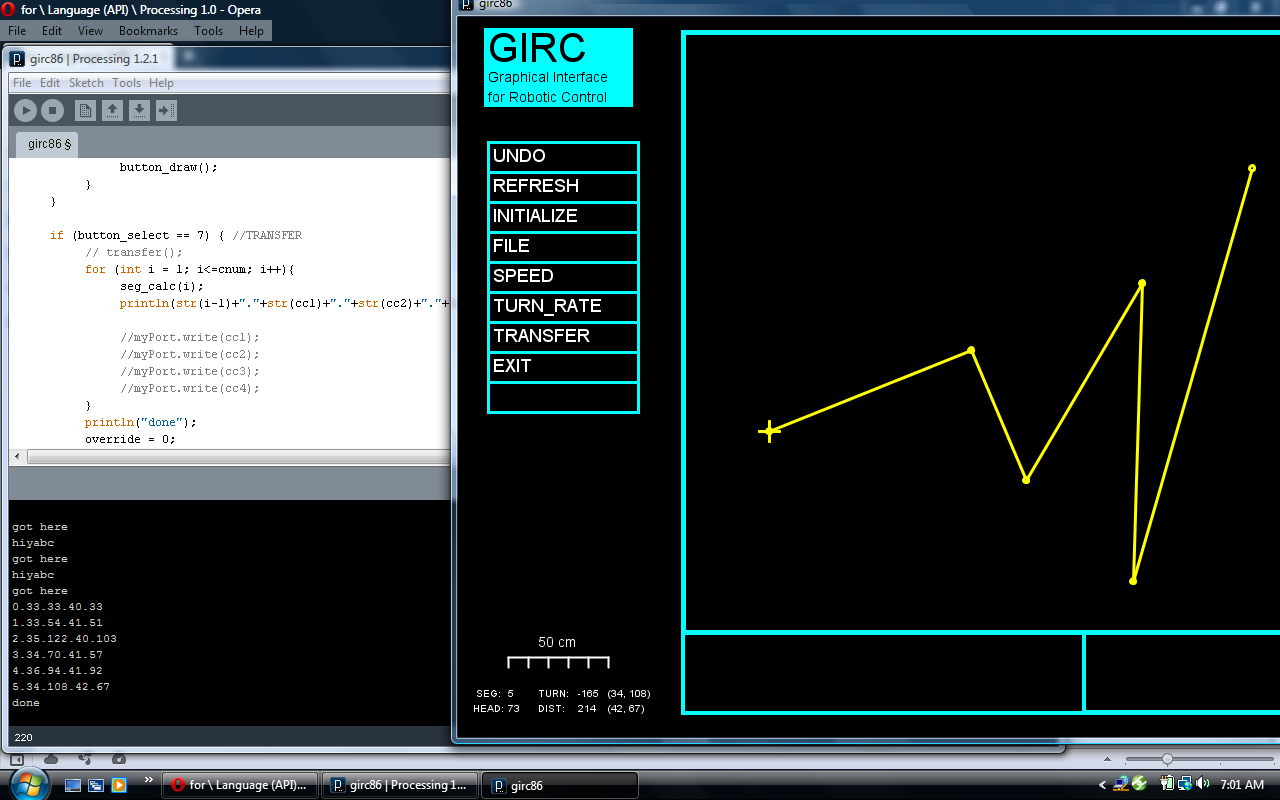
That is what the Processing “console” is for. The console is the black area at the bottom of the Processing window. It’s where you can print data from your Processing program in real time, so that you can troubleshoot.

In the above screen-capture image, the console appears in the lower left corner. As shown, GIRC is running and I’ve clicked Transfer. At this stage in program development, however, Transfer does not send anything over the serial port. Instead, it prints turn-and-move data to the console using the println() function.

As you can see, the last line in the console corresponds to the turn-and-move data shown in the lower left corner of the GIRC screen. I’ve checked all the other lines and they’re correct too.

Now it’s time to send data through the serial port.

Posted in Uncategorized | Tagged , , , , , , , , , | Leave a comment

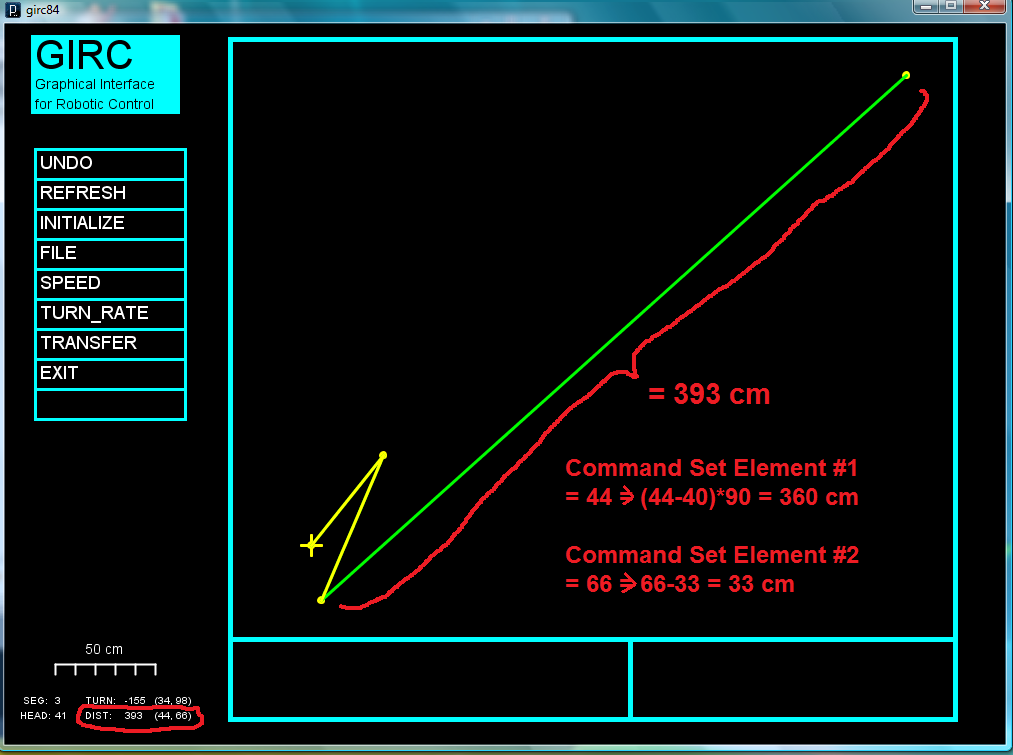
GIRC Distance Commands

In the above illustration, the first Command Element has a command code of 44, which tells us that it is a Move command, and that we are to move 360 plus whatever is in the second Command Element minus 33. Why this bit of complicated arithmetic?

Ironically, to simplify things. First of all, I don’t want to send raw segment coordinate data to the microcontroller, because then to do the math calculations in the microcontroller I would have to load the floating point trig libraries into it and that would take up a lot of memory that I may want for something else. Second, I want to limit the data I send over the serial port to the printable ASCII character set between 33 and 127 in byte values.

So I do all the heavy math in the computer and then encode the path/segment turn-and-move data into a format of a series of bytes ranging in value from 33 to 127. The convoluted but simple arithmetic can then be done by the microcontroller to convert back to the actual turns and moves.

Posted in Uncategorized | Tagged , , , , | Leave a comment