
I made a custom 3D badge for Halloween and wanted to attach it to my shirt using magnets. At first I tried tape, then I used glue, then I finally admitted that yes, I would have to learn how to embed things in 3D prints.
In this example, I will be using TinkerCAD, Flashforge Flash Studio, and a Flashforge AD5X 3D printer. Your own software and hardware, if not the same, is likely to have similar steps in the process.
Here is the badge and the kind of magnet I’m using:
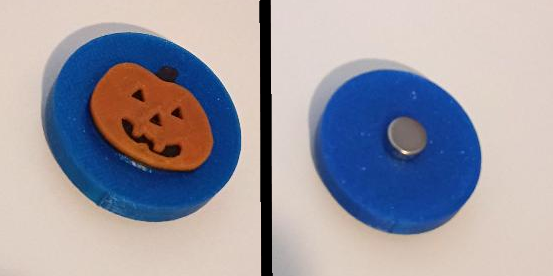
The magnet for the badge has already been embedded, but as you can see, the magnet that goes inside the shirt and attracts the badge-magnet to the shirt is rather tiny and difficult to handle. So what I’m going to do is print a container for this ‘inside-the-shirt’ magnet.
This particular magnet has dimensions of 8mm diameter and 3mm height. Therefore, in order for the magnet to fit inside the container, I’ll have to make a hole that is somewhat larger. Since I like round numbers, I’ll go with 10mm diameter and 4mm height for this hole. I want the overall container to bigger than the hole, and I figure that 20mm diameter and 6mm height is about right.
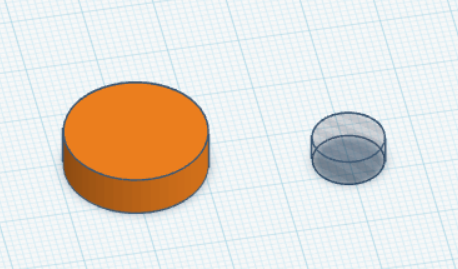
I’m positioning the hole in the center of the container, with 1mm clearance above and below. I’ll assume that you know how to do this in TinkerCAD or whatever design program you’re using, so let’s export the combined object as an STL file and move onto the slicer.
In the screenshot below, I (1) loaded the container’s STL file into Flash Studio, the slicer that comes with Flashforge printers, and (2) clicked Slice plate. I direct your attention (see red arrow) to the slider bar on the right.
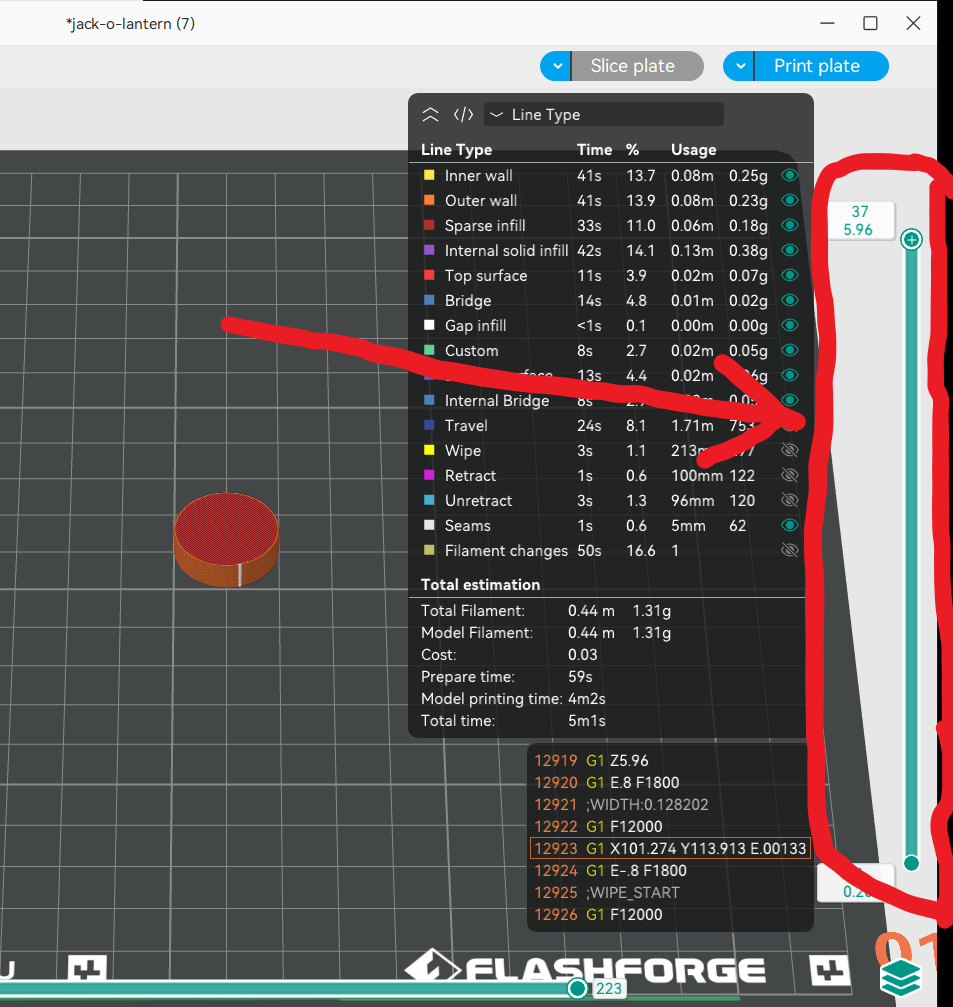
If you move the ‘thumb’ (circle with plus sign) of the slider bar up and down, you’ll see a layer-by-layer cross-section of how the container looks while it is being printed. Here in this example, I’ve found that the top of the hole is at layer 31. If I go up one more layer, the hole will be covered, so this is where I want the printer to pause so that I can embed the magnet.
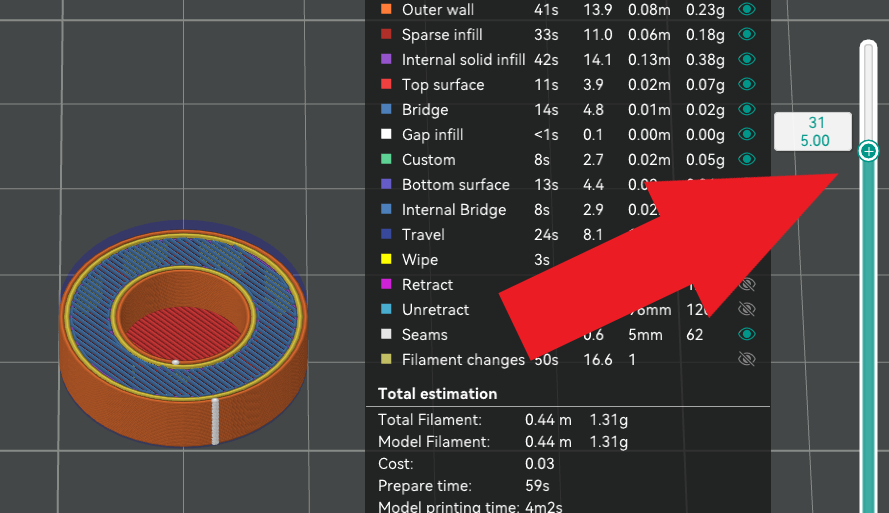
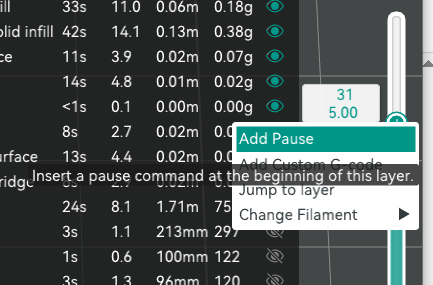
To insert a pause at this point, (1) move your mouse cursor over the thumb button, (2) right-click your mouse, (3) select Add Pause from the little menu that appears, and (4) left-click your mouse.
You will now see the word ‘Pause’ appear next to the slider bar at the assigned position.
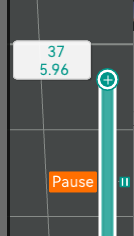
I found that after inserting the pause, I had to click the Slice Plate button again. Then I was able to export the file in g-code format, which I then loaded into my AD5X printer (I use a flash drive to transfer files to the printer but it’s the same with wifi).
The printing process works the same, until you get to layer 31 and the printer pauses automatically. You may want to use tweezers to insert the magnet into the container hole, but I had enough clearance to use my fingers. Like so:
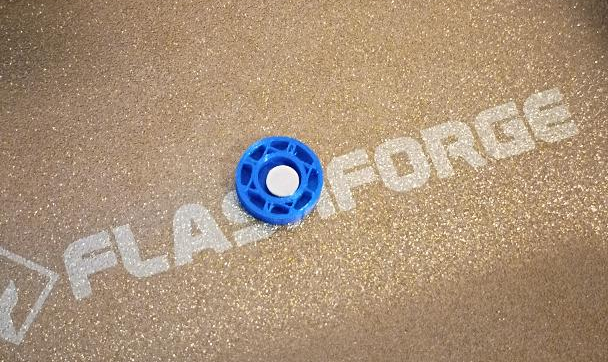
The AD5X has a little control screen, and resuming the print is just a keypress. And here is the fully-printed container with the magnet inside:
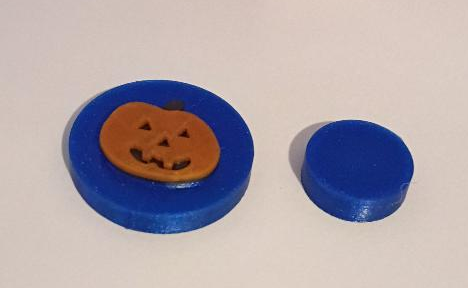
The magnets work fine in holding up the badge. With the inner-shirt magnet embedded inside the container, it’s much easier to handle and I don’t have to worry about my pet mice swallowing it.
I haven’t tried it yet, but this embedding procedure should work just fine for batteries, LEDs, motors, sensors, RFID chips, and anything else you may wish to embed inside a 3D print. Remember to add enough depth to the hole so that your printer nozzle doesn’t strike the top of the embedded object.
Have fun and happy embedding!
***
Do you like science fiction? Then you might like Europa Dive, my novella about a first-contact encounter between humans and intelligent octopoids dwelling beneath the surface of an ice moon.