Laser Cutting the Test Box

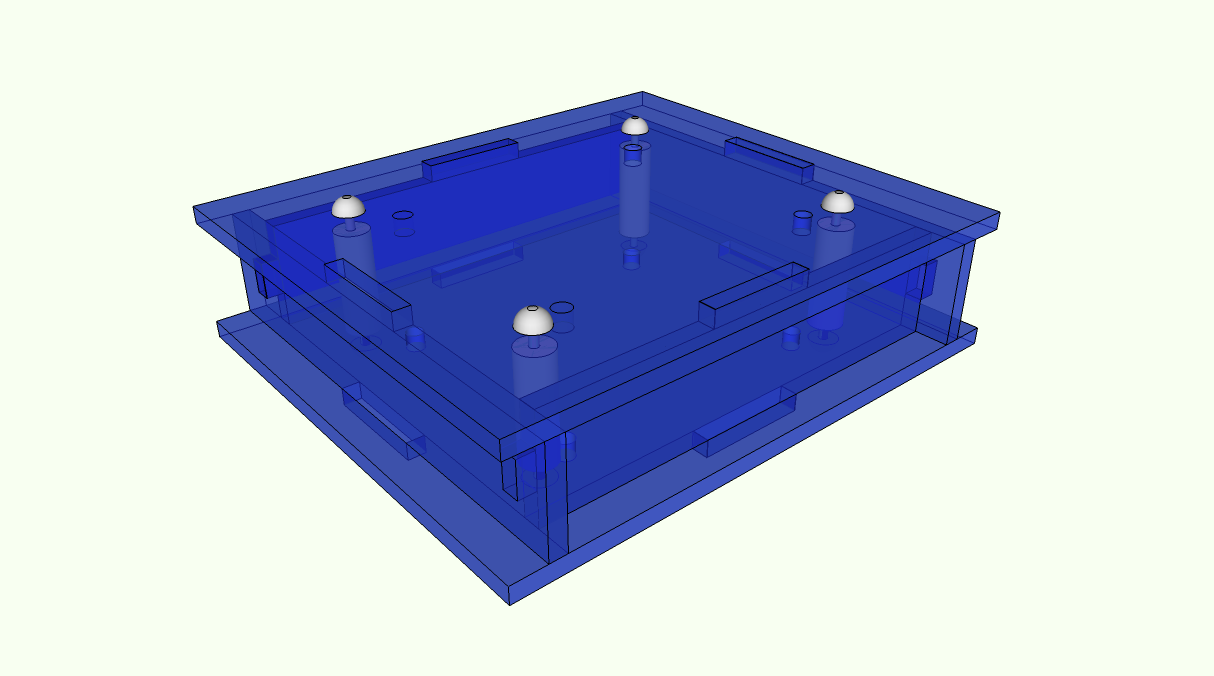
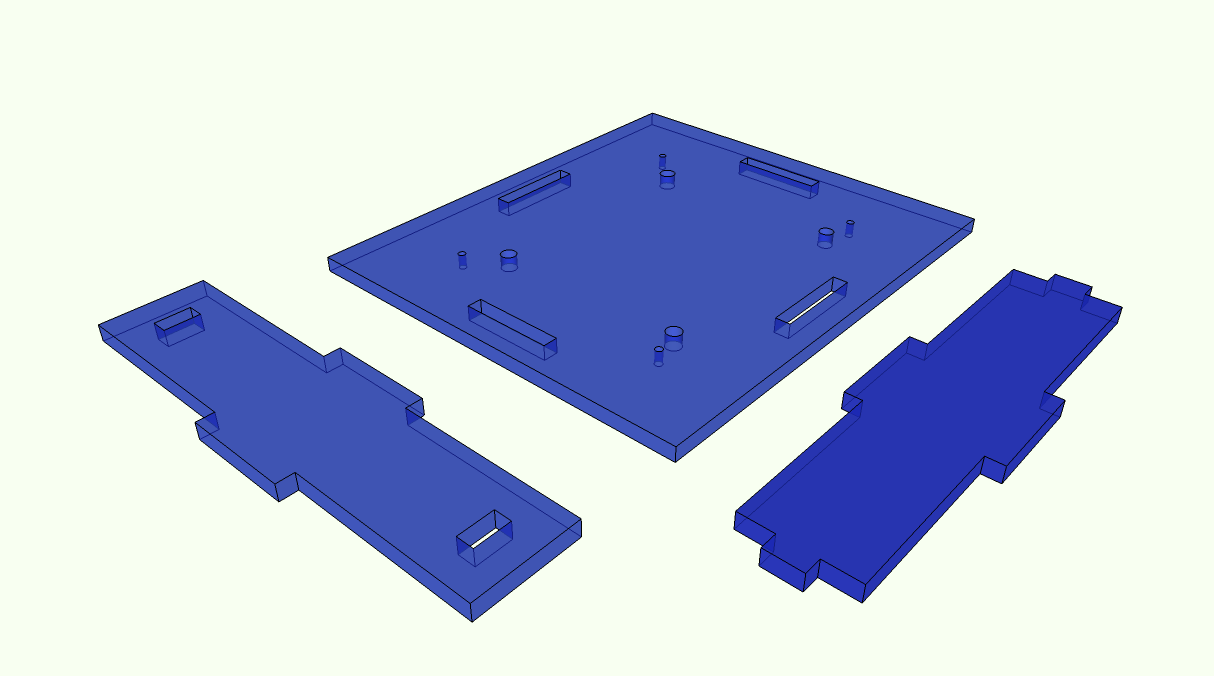
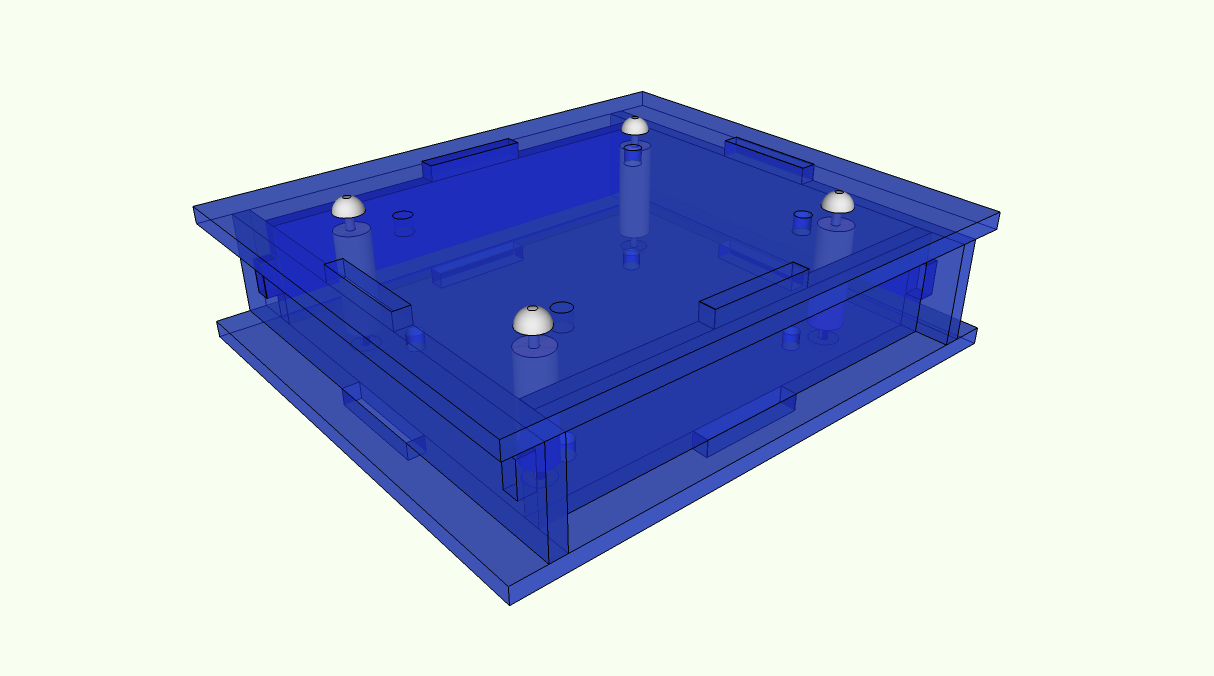
Here was the test box as designed in Sketchup:

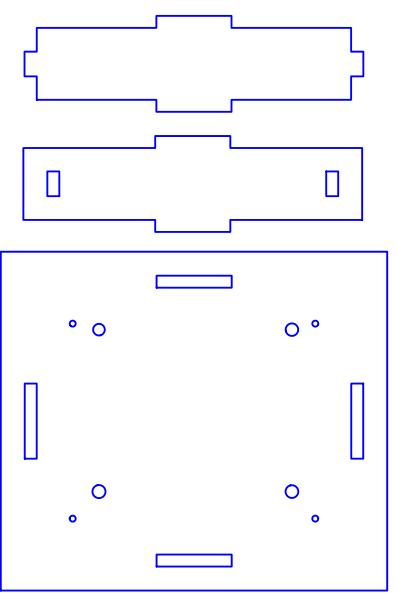
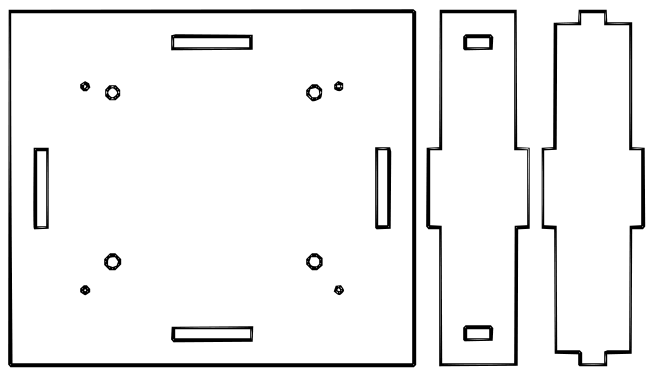
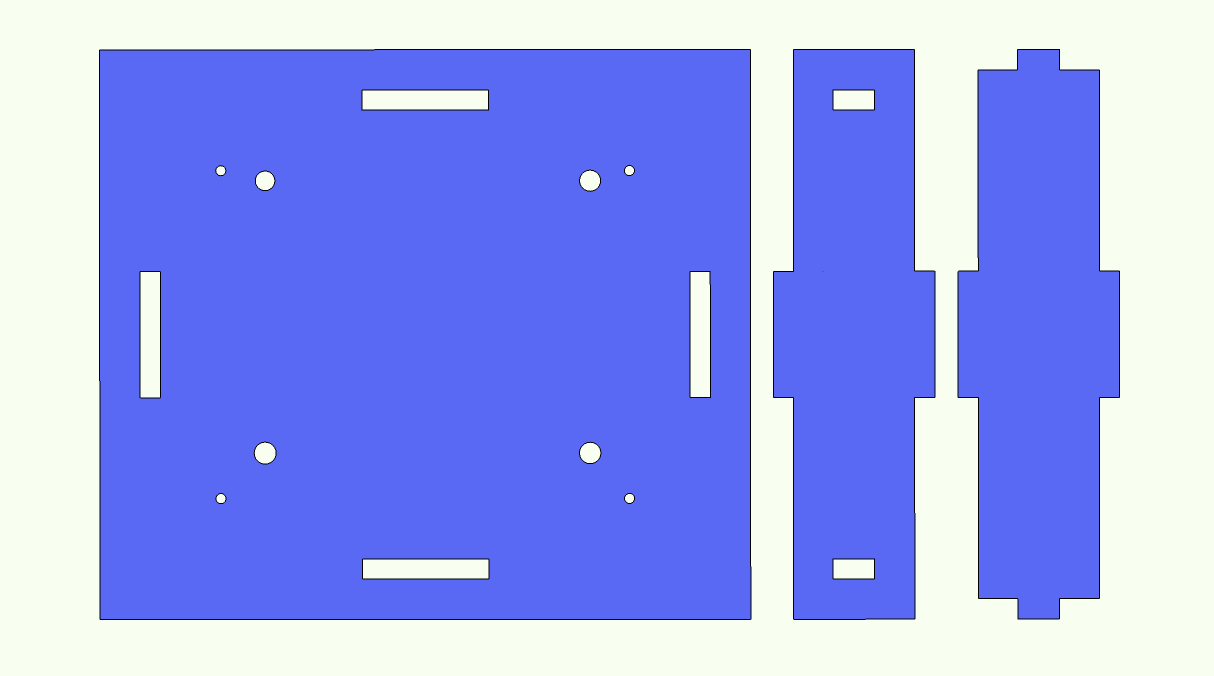
Here is what the SVG file looks like:

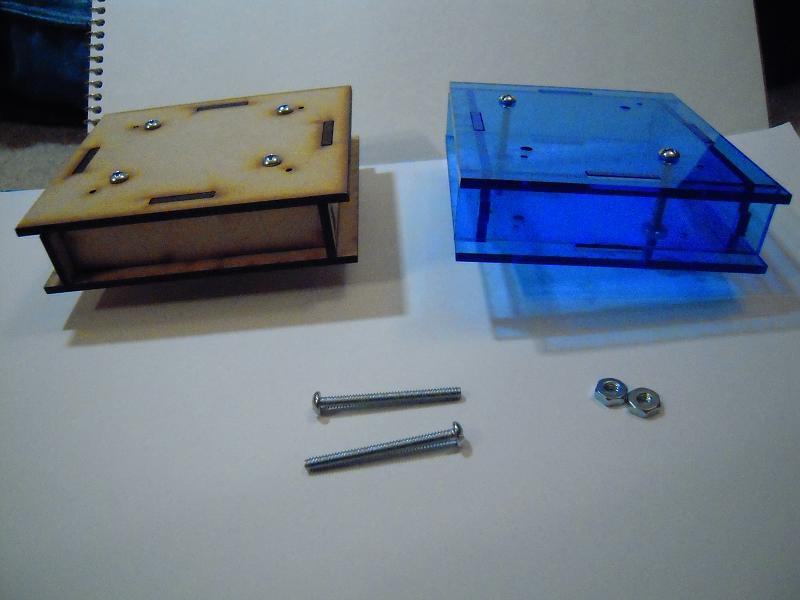
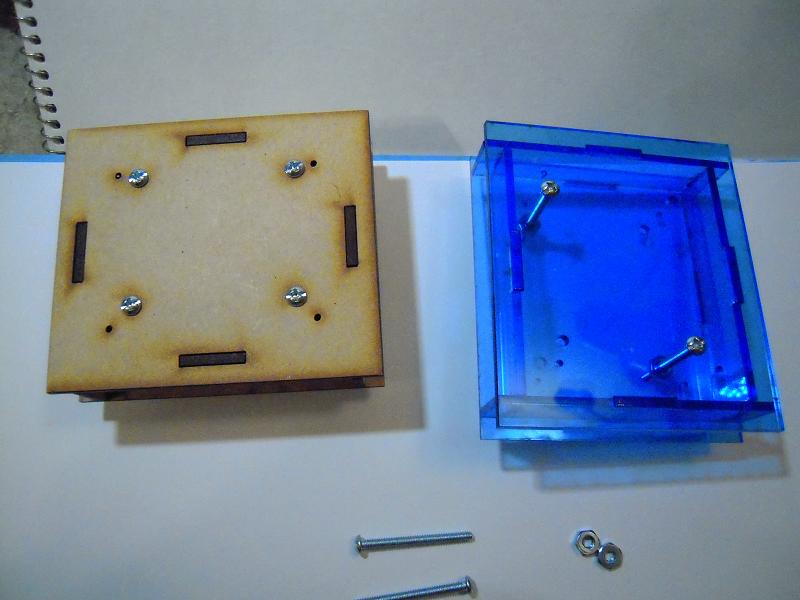
And after a visit to StudentRND, here is the laser cut box in MDF and acrylic:

You’ll note that I’m only using two bolts on the acrylic, and while there are standoffs in the MDF box (trust me!), the bolts are all by themselves in the acrylic box. These modifications save on production costs and as it happens, the acrylic box appears to be quite tightly fit together without the extra securing hardware.

Now it’s onto the robot casing.

Posted in Uncategorized | Tagged , , , , , | Leave a comment

Make Magazine: Complete Set

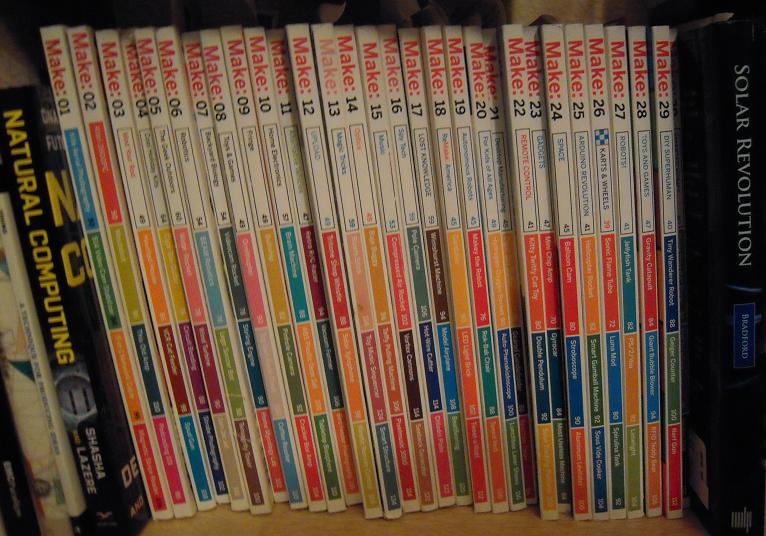
After scouring Half Price Books stores throughout the Puget Sound Region, I have collected all back issues of Make Magazine. Step one of my plan for world domination is now complete. Hope your day is going well too!

Posted in Uncategorized | Tagged , , , , , | Leave a comment

Sketchup SVG Plugin

I previously mentioned using the Inkscape trace function to convert a Sketchup exported image file into SVG format. However, it doesn’t seem to be working well enough for laser-cutting. Sure, from a distance it looks okay, like so:

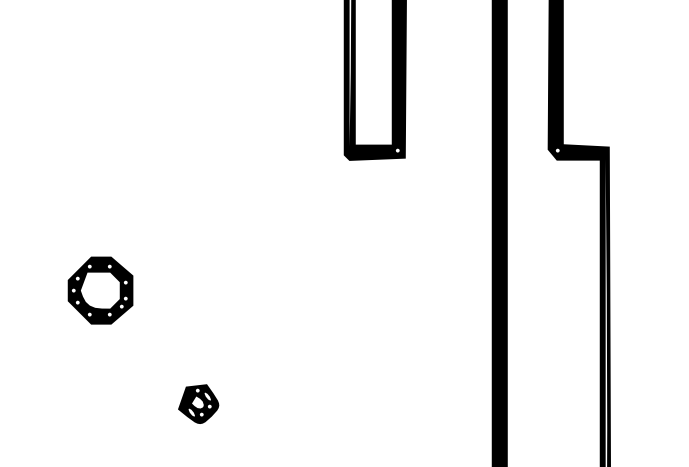
But then zoom in and we see:
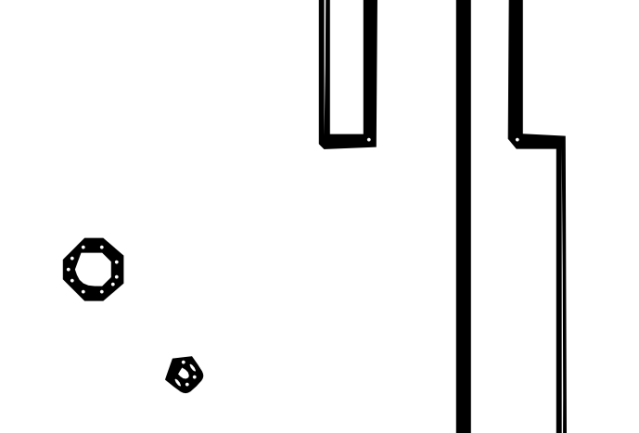
I’m not sure what causes these double-bowed lines and bubbles within circles, but I don’t think that a laser cutter will be too happy with this file. Maybe there’s a way to clean up this image inside Inkscape, but I haven’t found it yet.

Fortunately, there is an SVG plugin for Sketchup which produces results like this:
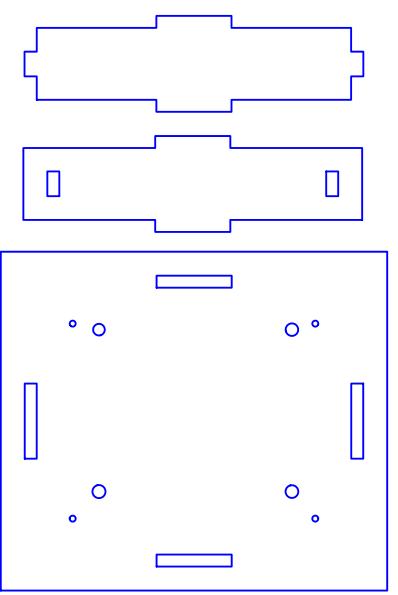
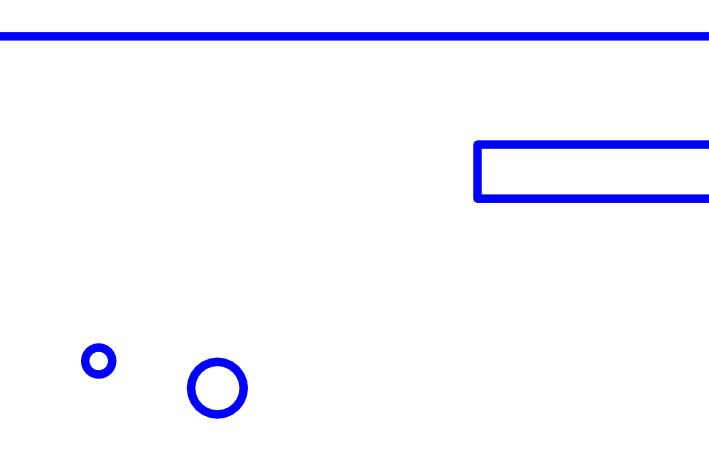
And in close-up:
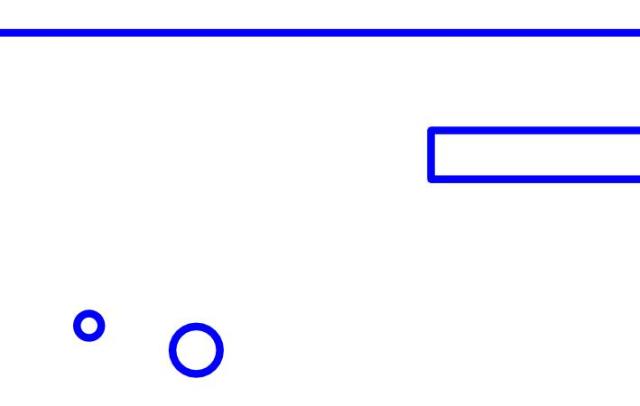
(Please note, I had to convert the SVG files to other image file formats in order to be viewed in WordPress.)

The SVG plugin wiki is here.

The SVG plugin appears to work great and I recommend it. However, as is often the case, I learned a few things about installation and adaptation on my particular system configuration that aren’t fully covered in the instructions:

1. Vista wouldn’t let me unzip a file directly into the Sketchup plugins folder. However, once I unzipped the files, I could use the conventional method of transferring files into the plugins folder.

2. The flightofideas.rb file has to be placed directly under the Plugins folder at the same level as the FlightofIdeas folder. If you don’t have the .rb file there, Sketchup’s extension list won’t include the folder name.

3. When exporting from Sketchup into SVG format, you’re asked to select a ‘border.’ If you select a border of 10 mm, you’ll end up with the bows and bubbles as before. Selecting 1 mm seems to work okay. With respect to the laser cutting, I’m not sure about the lines or path selection at the time of this writing.

4. For some reason, the pieces within the group got physically rearranged from the layout in Sketchup. I had to load the SVG file into Inkscape to reorient the pieces back into the original acrylic-conservative layout.

I sense that I’m still thrashing through the fog here, but at least now I have my pieces in a nice clean vector format. It is one more step for the Robot Builder on the mystical journey from Sketchup to Acrylic.
Posted in Uncategorized | Tagged , , , , , , | 3 Comments

Test Box Pattern for Laser Cutting

Before I try to cut for an entire robot, I thought I’d try a ‘test box.’ This is an object that has no functional value, but will give me an idea of how slots and tabs fit together in laser-cut acrylic, what size holes I need for the standoffs, etc.

Here’s the test box design that I came up with:

This is how the pieces fit together:

There are six pieces, but each is a duplicate:

And finally this is what I’ll be importing into Inkscape:

And ascertaining the viability of export/import of the pattern from Sketchup to Inkscape will be another thing that the test box is for. Here’s the Youtube video from Richard showing how that is supposed to work:

Posted in Uncategorized | Tagged , , , , | Leave a comment

Grisbot color options

Acrylic can really look nice, and who knows, I may want to offer different colors. I’m not exactly in the position of Henry Ford, who told his customers they could have a car in any color they wanted so long as it was black.

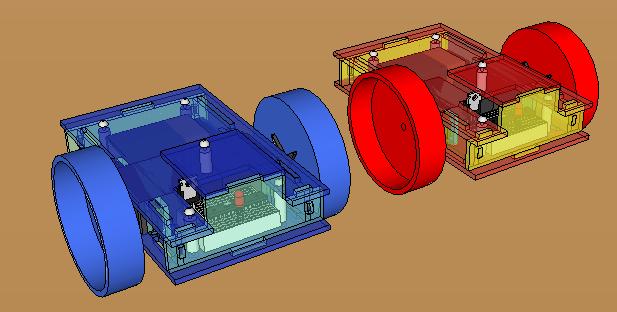
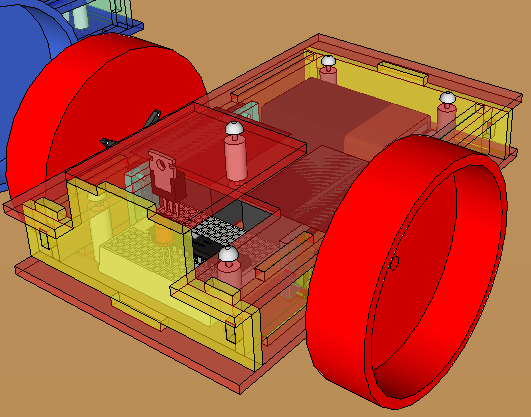
I switched out the iced tea jar wheels for peanut butter jar wheels, which are somewhat smaller and come in ‘tealish’ and red as shown. The red and gold model reminds me of a Chinese New Year’s dragon.

It might be cool to have LED running lights, though that would take up inputs. Well, maybe I can offer that as an option.

Not yet shown are the sensors, which will affect how the front piece is cut.

Posted in Uncategorized | Tagged , , , , , | Leave a comment

Split Level Standoffs

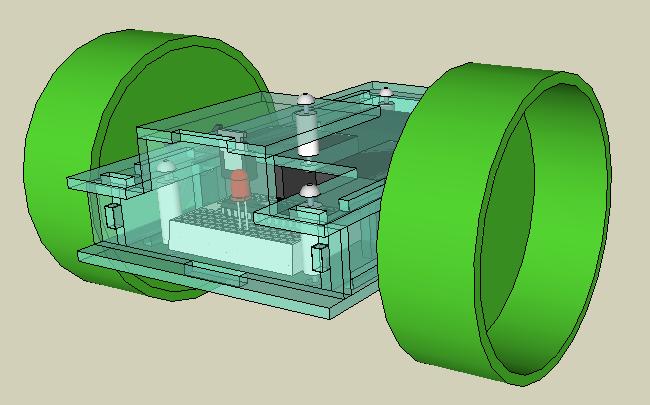
The full title of this post would be something like ‘Split Level Standoff Laser Cut Acrylic Casing for Robot.’ Anyhow, I added a level by using another standoff. This was necessary because the voltage regulator is too tall to fit inside the original casing with the 3/4 inch standoffs.

Tomorrow I think I’ll play around with colors and tints, and maybe use smaller wheels.

Posted in Uncategorized | Tagged , , , , , | Leave a comment

Laser cut acrylic robot casing with standoffs

Recently, Maker Shed offered a laser-cut acrylic casing for a geiger counter. Here is a blog entry on the assembly of the casing, which shows how standoffs are used.

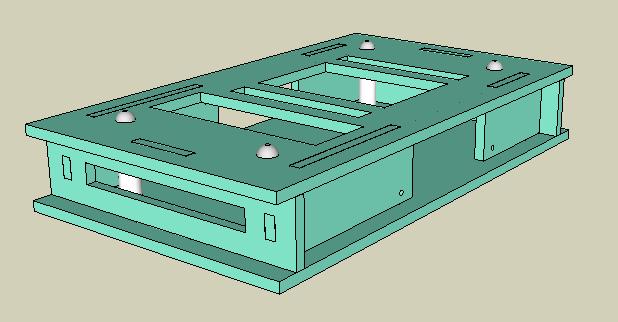
I thought, “That looks nice,” so it was back to the drawing board. I got the dimensions and pricing for standoffs here, and after some fiddling around in Sketchup, I constructed a laser-cut acrylic robot casing with standoffs like so:

(I’ve reduced the transparency to zero for clarity’s sake.)

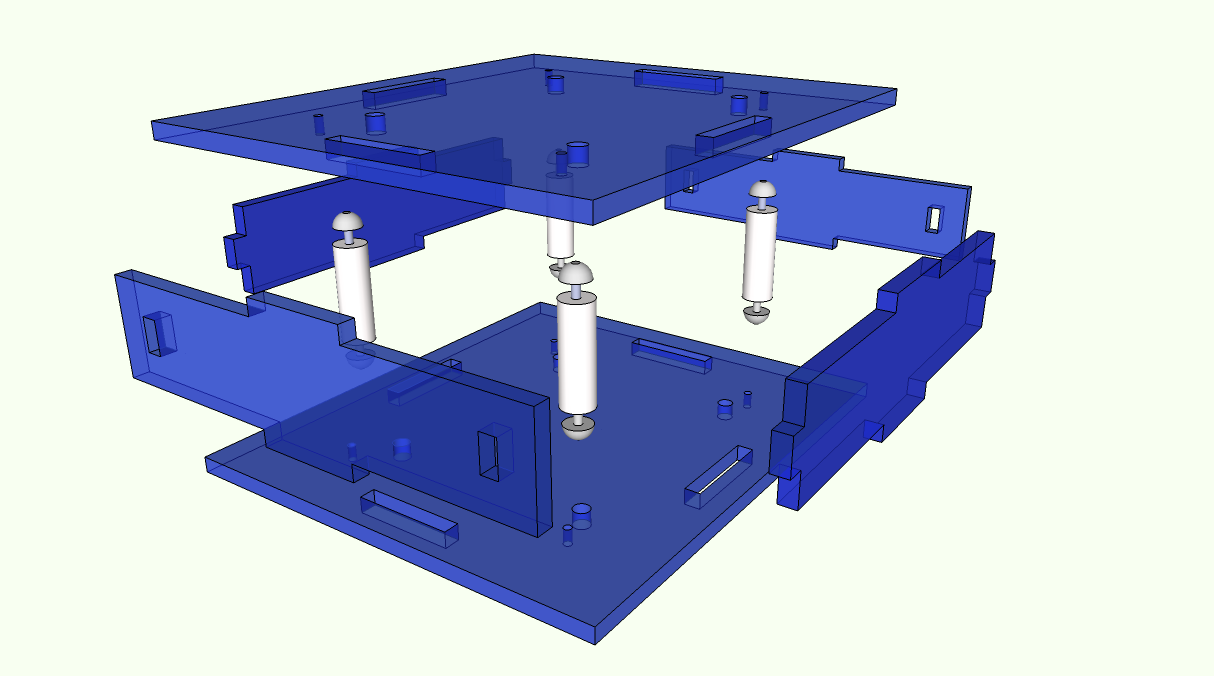
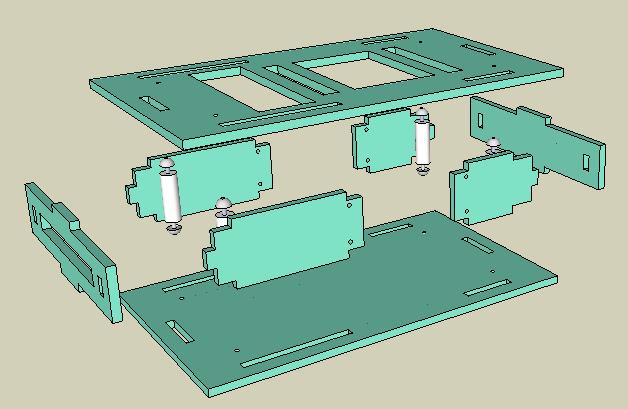
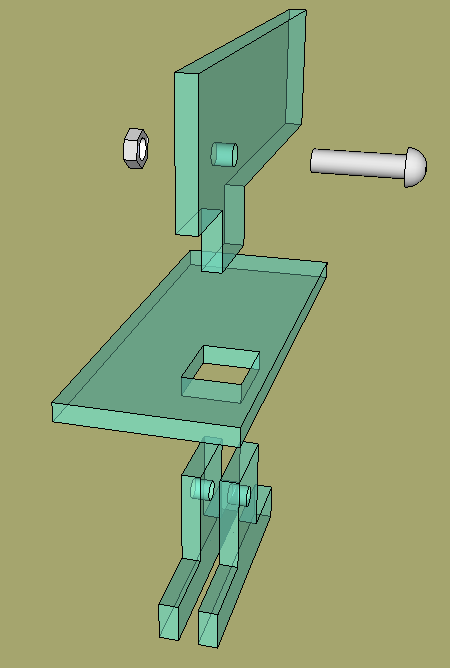
And this is what it looks like in an exploded view:

So we’ve gone from acetone-bonding, to bolts, to standoffs. It looks like the design is beginning to stabilize. I think for sure that this week I’ll be cutting acrylic.

Posted in Uncategorized | Tagged , , , , , | Leave a comment

Bolting Laser Bots

Okay, the title is a little bit of a joke, but this is a continuation of my efforts yesterday to conceptualize how laser-cut acrylic pieces can be assembled into a box-like enclosure for a robot.

Since the pieces have been modified since yesterday, I’ll first show what they look like now:

I revised the slot in the bottom piece so that it would accomodate a wider tab in the middle. I also added the back piece, which is shown on the left. (actually, only half of the back piece is shown, but there’s method to my madness.)

And that is the exploded view, which I’ll now compress like so:

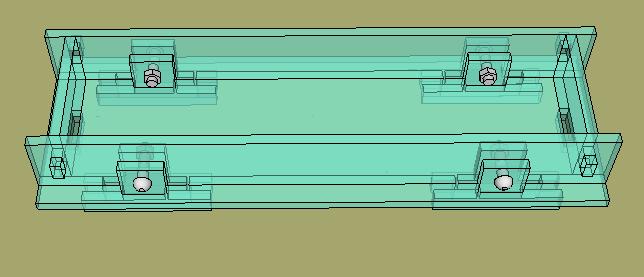
Of course, that’s only for one corner. For the entire box:

Now, this is not something that I’m going to physically build. I just wanted to work out in my mind what I need to do in order to make a boxlike casing that is composed of laser cut acrylic pieces bolted together. Once I’m satisfied that I have a workable design, I’ll modify it to enclose the robot and then that version will be cut and assembled.

I think I still have some things to think about yet, but it looks like it’s getting there.

Tomorrow I think I’ll make some test pieces that I can take to the laser cutter to see how they work out. I’m worried that the Sketchup-to-Inkscape export/import process is not robust, and even if it was, I’d still have trouble fitting a 1/8″ tab into a 1/8″ slot. I don’t have a good feeling about success on the first try, so my attitude for Saturday is: it’s going to be a learning experience.

Posted in Uncategorized | Tagged , , , , , | Leave a comment

Bolting Together Laser Cut Parts

Plan A was to use acetone to bond the parts of the robot’s laser-cut casing together. However, the overarching goal is to make a kit that can be sold to kids, and it occurs to me that having ‘Buy acetone’ as the first step isn’t going to increase the popularity of the kit with kids or their parents.

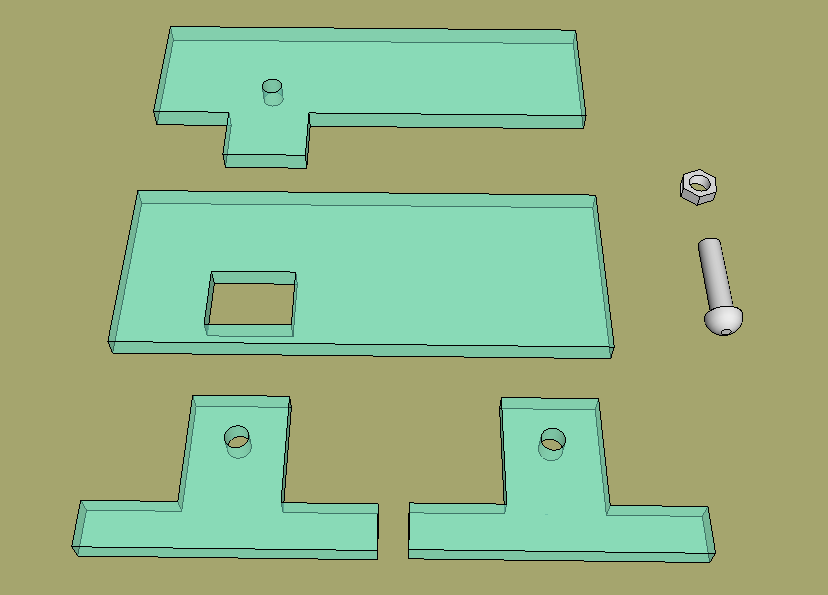
Plan B therefore is to join the perpendicular sides with bolts, which require only a screw driver. I think I’ve come up with a way to do this. Here’s how a corner would look:

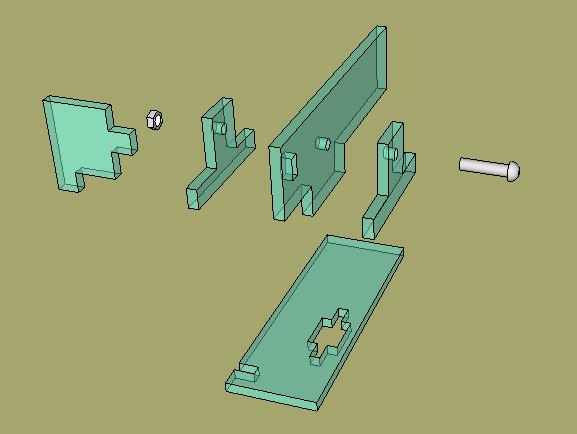
Here’s the exploded view of the pieces (bolt and nut threads not shown):

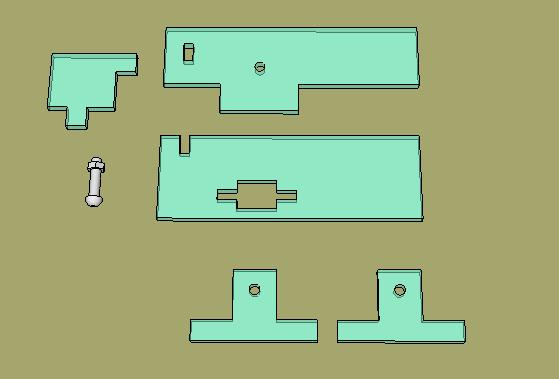
And here are the pieces laid out:

I hope I can get away with just four bolts, one in each corner on the bottom. Meanwhile, the top is just going to be a lid and the front and back will be locked into place with tabs and slots into the other sides.

I’ll look into that design configuration tomorrow.

Posted in Uncategorized | Tagged , , , , | Leave a comment

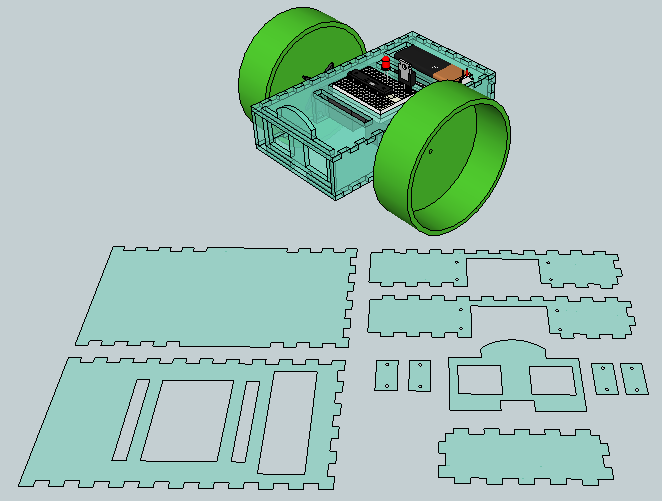
Crenellated Laser Cut Patterns for Grisbot in Sketchup

After much tweaking, I seem to have crenellated patterns for Grisbot that look like they just might print out on a laser cutter.

How do you go from a 3D side to a 2D pattern in Sketchup? Well, it’s not that big a deal to begin with because of course the sides are only an eighth of an inch thick. But the laser cutter cuts in 2D, so even an eighth of an inch is a distraction.

The solution is to click just on the top or outer surface of each side, then select copy, then paste. I’ll assume you know how to get in and out of groups in Sketchup.

(Perhaps to belabor the obvious: although the laser cutter only cares about 2D patterns, the outputted physical pieces will be 1/8 inch thick because the acrylic sheet upon which the pattern is being cut is 1/8 inch thick.)

I’ve never worked with a laser cutter before, but I talked to someone at StudentRND about a month or so ago, and he said it was possible to use Sketchup to create patterns for their cutter. I may need some kind of plug-in, however. We shall see.

StudentRND is open tomorrow afternoon, so that’s when I’ll drop by and see if everything I’ve done so far is garbage, or if it is salvageable, or if miracle of miracles I got it right the first time.

(Notice that I’m using the 2-Ls spelling for crenellated today, despite flagging by the Word Press spell checker. According to Google, 2-Ls has four times more hits than 1-L. So I’m going with the herd on this one.)

Posted in Uncategorized | Tagged , , , , , | 1 Comment